 Unused Database Table Deletion
This handy plugin will delete all of those unused WordPress database tables which have been left behind from uninstalled plugins. Don’t worry about deleting the wrong tables because WPDBSpringClean will NOT delete any core WordPress tables or tables which are associated with an installed plugin (whether it is ACTIVE or INACTIVE).
Database Table Optimization
Due to regular insertions and deletions in the various DB tables on your system, these tables can quite often hold allocated but unused space. Consequently this can make your DB tables inefficient, fragmented and unoptimized. This plugin will identify unoptimized tables and will allow you to optimize them by deleting the allocated unused space within a particular table. The plugin also optionally allows you to specify search criteria such as the minimum amount of overhead per table and minimum unused space for a table.
By default if no search criteria is specified, the plugin will identify all tables which have an overhead of greater than 10%. (Note: “Overhead” in this plugin is defined as (Data_free/Data_length) expressed as a percentage and where Data_free and Data_length are MySQL table parameters.
“Unused Space” is defined by the value of the MySQL parameter: Data_free)
So why not give your WordPress DB a spring clean today!

Attention Multi-Site users: Currently WPDBSpringClean is only supported for single site WordPress installations. Support for multi-site is definitely on our to-do list so please stay tuned.
Installing WPDBSpringClean
- FTP the
WPDBSpringCleanfolder to the/wp-content/plugins/directory, OR, alternatively, upload theWPDBSpringClean.zipfile from thePlugins->Add Newpage in the WordPress administration panel. - Activate the WPDBSpringClean plugin through the ‘Plugins’ menu in the WordPress administration panel.
Using the WPDBSpringClean Plugin
1. Finding and Deleting Unused DB Tables
After you’ve installed and activated the WPDBSpringClean plugin, go to the Settings menu and choose WPDBSpringClean as shown below: 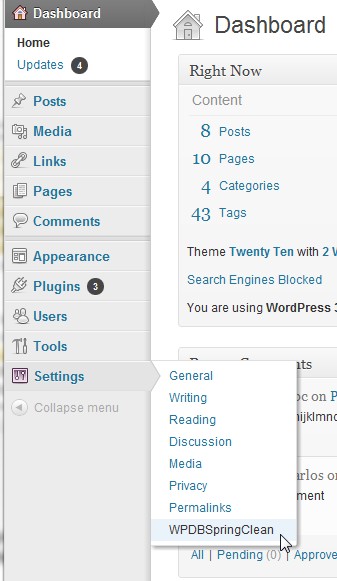
You will then be taken to the WPDBSpringClean admin page which looks like the following: 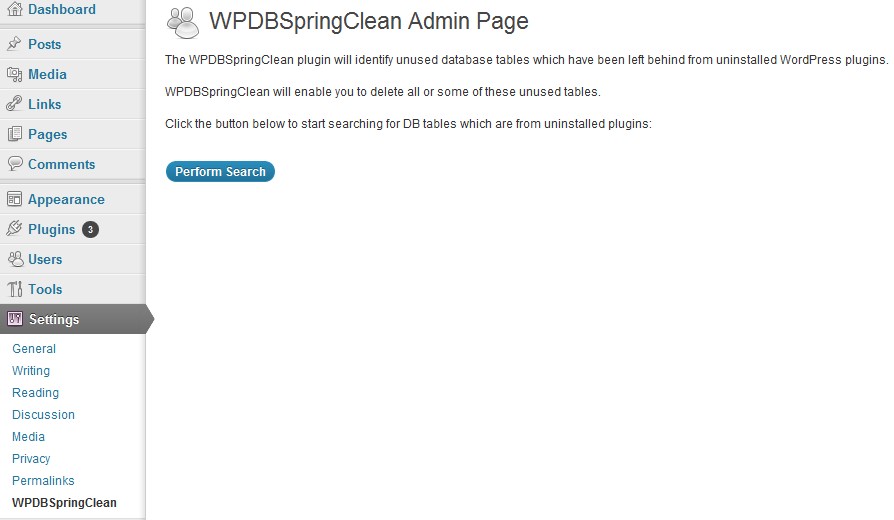 To start a search for any remaining unused tables from plugins which were uninstalled, click on the “Perform Search” button.
After searching your WordPress system, the WPDBSpringClean plugin will display any results as shown below (click on image for larger view):
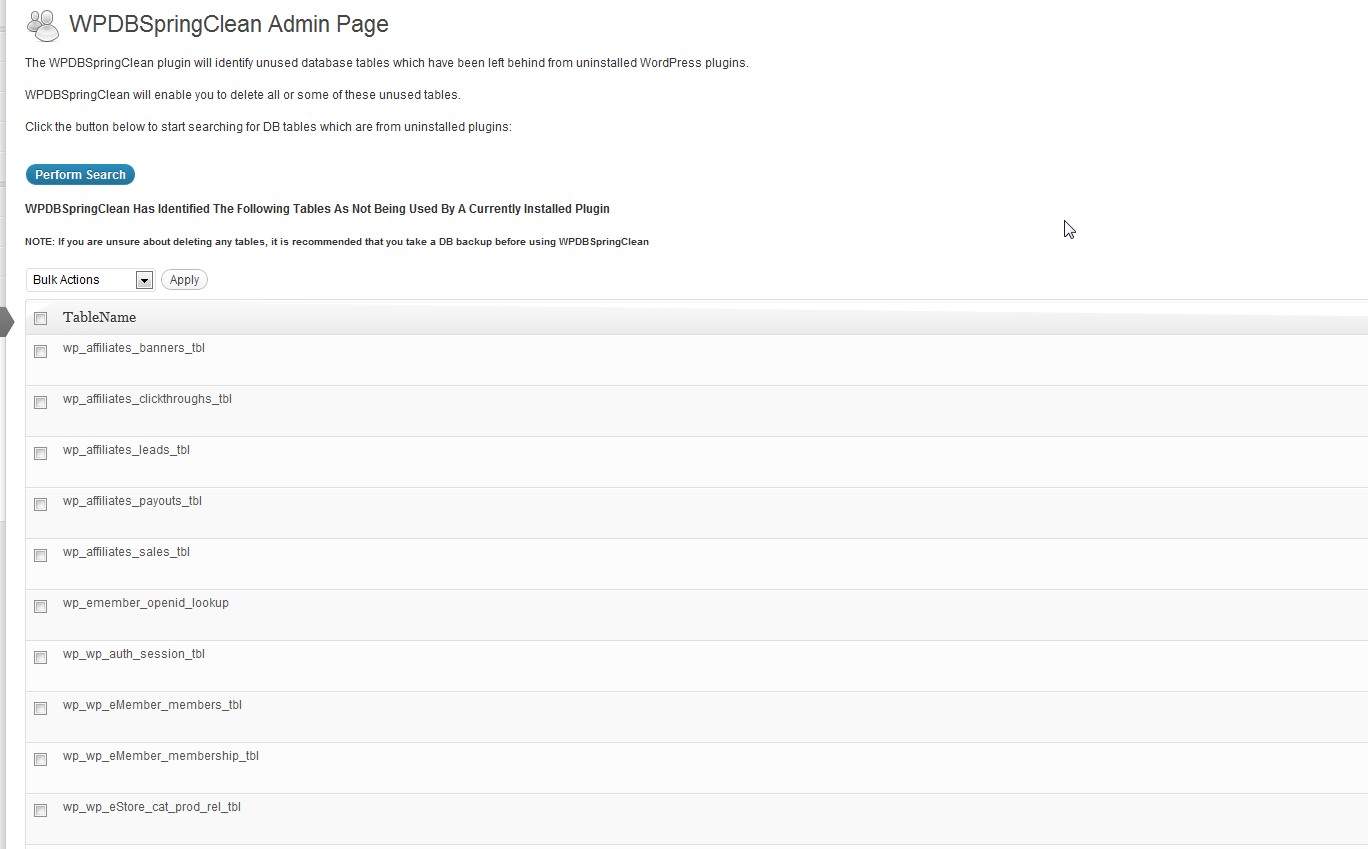
To delete a single table, simply click on the “Delete” link. Or alternatively to bulk delete tables, select the entries you wish to delete by using the checkboxes and then select the “Delete” entry in the “Bulk Actions” drop down box and click the “Apply” button.
NOTE: If you are unsure about deleting any DB tables, it recommended that users of this plugin should take a backup of their DB before using it.
2. Optimizing DB Tables
To find unoptimized tables which you can then optimize do the following:
Click on the DB Table Optimize tab.
Then enter the optional search criteria and click the Perform Search button. This plugin gives you the option of specifying the minimum overhead per table you wish to search for and also the amount of unused space.
If you choose to not specify any search criteria the plugin will default to:
Minimum Overhead = 10%
Minimum Unused Space = any
If you have any unoptimized tables based on the search criteria the tables will be displayed as shown in the image below (click on image for larger view):
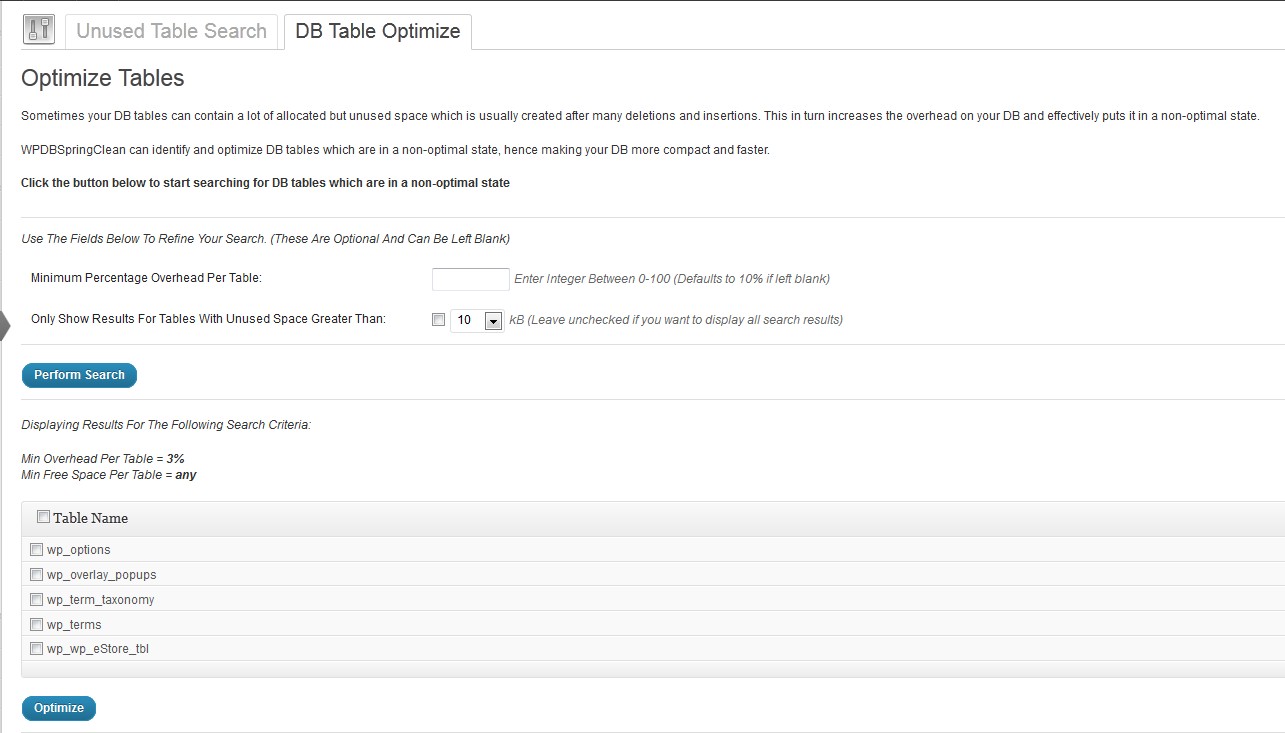
Select the tables you wish to optimize and then click the “Optimize” button.
 Michael says
December 23, 2018 at 3:09 pmno latest updates?
thanks
 peter says
January 9, 2019 at 11:23 amHi Michael,
I’m working on it. :)
 Max says
June 20, 2015 at 4:10 pm+1 for Multisite Support
Cheers =)
 Master says
June 2, 2015 at 2:49 pmI keep getting 500 internal Server Error whenever i run a search. I appears to timeout. I am on a VPS IIS server with WP version 4.2.2. Any update for that version of WP planned in the near future?
 P.Kumar says
January 14, 2015 at 9:14 pmHi,
Is this compatible for MU, I am using latest version of WP.
Plz reply.
 Josh says
December 30, 2014 at 11:30 amWhen I ran the plugin, it returned a list of 38 lines w/o any table info (blank lines) — just a checkbox, “Delete” — nothing else.
 John McFeely says
December 2, 2014 at 11:04 pmI uploaded, activated wpdbspringclean and it deleted most of my website plus the plugin section on the dashboard. I can nolonger get to the plugin section or restore it from the backup. Most of the plugins are now missing too. How can I restore my website to its original state?
 peter says
December 3, 2014 at 9:55 amHi,
The plugin does tell you to take a DB backup before doing anything. Did you do that?
If so you can always restore that backup file.
 Bnimbhal says
July 23, 2014 at 7:38 pmHi,
I am getting the below error.
Fatal error: Maximum execution time of 30 seconds exceeded in /home/******/public_html/wp-content/plugins/wpdbspringclean/grepSearch.php on line 8
Waiting for reply.
Thanks
 HW says
July 9, 2014 at 5:26 amHi … running it on WP 3.9.1 …and the search just keeps on running…no results… – what can I do to perform a search?
 souleymane says
May 13, 2014 at 10:10 pmhello,
great plugin but is it possible to have an update for wordpress 3.9.1
 peter says
May 16, 2014 at 1:47 pmHi,
Is there some compatibility issue you are seeing in particular?
 Lee says
April 22, 2014 at 10:03 amHi
I have a old website with 0ver 1700 pages and have installed/uninstalled many plugins over the years, I have manually removed tables where the table names made it obvious which plugin they belong to, but I now have a list of tables that I cannot tie into a plugin – WPDBSpringClean Plugin sounds like the ideal tool to help me so please, if you can, when you ca, make a multi-site version available to us.
One question what criteria do you use to work out if a table is unused?
Thanks
Lee
 peter says
June 12, 2014 at 11:52 amHi Lee,
Sorry for late response – I have seemed to miss this comment somehow.
The plugin will do a series of string matching in order to determine if a table is used by a plugin or not.
Thanks,
Peter
 cisse says
March 15, 2014 at 2:45 amhello, I have a problem. I started the plugin yesterday at 22h by pressing the button perform research but nothing works. Today I verified but nothing has changed. I’m on wordpress 3.8.1
 Henri GILABERT says
March 6, 2014 at 12:38 amhi,
I run WPDBSpringClean on a large database (1GO, 98 tables) and I get a timeout message : Fatal error: Maximum execution time of 120 seconds exceeded….
How can I fix it ?
thank you for your help
 peter says
March 13, 2014 at 11:25 amHi Henri,
You can try adding/modifying the following in your php.ini file:
max_execution_time = 360
The above will set the maximum execution time of each script to 360 seconds.
If you don’t have access to the php.ini file ask your host provider to do it for you.
Thanks,
Peter
 KdM says
February 10, 2014 at 1:30 pmJust want to say THANK YOU WP Solutions HQ! As one of those “dangerously”
inept website builders, I have to rely on “plugins” to do the work I don’t know how to do.
It’s a LOT of trial & error, and I get into trouble nearly everytime; but WPDBSpringClean finally saved me from myself AND a very troublesome & stubborn form-building plugin…:–)
You can trust me when I say, there are NOT many plugins that actually DO what they say they will. But WPDBSpringClean DID!
You have made me a believer, again…THANKS, THANKS, THANKS!! :-)
 Coach Armstrong says
February 10, 2014 at 1:13 pmHi,
Any update about the Multisite support?
Thanks!
 peter says
February 11, 2014 at 2:52 pm@Coach Armstrong,
Been very busy lately and haven’t had a chance to sit down and work on this yet….but it is on my TODO list.
I will add multi site support for this plugin soon.
 Matthew Wayne Selznick says
June 1, 2013 at 5:56 pmI have a database of about 30 MB and 25 plugins… how long can I expect the Delete Unused DB Tables search to run? It continues for more than five minutes with no end in sight…
If it matters:
PHP Version : 5.3.13 / 64Bit OS
Memory limit : 90 MByte
Memory usage : 56.37 MByte
Thanks!
 peter says
June 10, 2013 at 2:18 pmHi Matthew,
I have tested with over 50 plugins on one of my test sites and the maximum processing time is no more than a minute and a half at worst.
One thing which stands out from the info you gave me is the “Memory limit : 90 MByte” setting of your host.
Mine is set to 512MB and hence I think yours might be a little low. Can you try increasing your memory limit to see if this fixes the issue?
thanks,
peter
 Rob Couty says
May 26, 2013 at 12:31 amLove your work period. Have no complaints at all. Recently I got this error message when using the DBSpringClean plugin. Now I realize it’s a possible conflict with one of my plugins. But before I did anything at all I wanted to let you look at the error code I get and so you can hopefully provide some insight.
Thanks in advance,
RC
Internal Server Error
The server encountered an internal error or misconfiguration and was unable to complete your request.
Please contact the server administrator and inform them of the time the error occurred, and anything you might have done that may have caused the error.
More information about this error may be available in the server error log.
Apache Server at wntdinnetworkmarketing.com Port 80
 peter says
May 26, 2013 at 12:04 pmHi Rob,
Regarding the “Internal Server Error” …..this can be caused by a variety of things.
For instance one reason might be that there is probably some sort of configuration issue with your .htaccess file.
If you have access to the host file system you can try and look for any error_log files yourself to see if there is a more specific error log being produced which might shed some light on the cause. (or you can ask your hosting provider to look into thsi for you)
What is the scenario which causes this error? Does it happen when the WPDBSpringClean plugin is being used in particular?
cheers,
peter
 Jose says
July 19, 2012 at 5:36 amHello, I am using digishop wordpress plugin and the plugin WPDBspringclean show wp_digishop_products is NOT using, and is wrong, and I using digishop then the table is active!!
Thanks for support
 wpsolhq says
July 24, 2012 at 4:54 pmHi Jose,
Thanks for the invaluable feedback.
I’ll take a look at it and see if can figure out what’s going on.
Thanks,
peter
 Jose says
July 25, 2012 at 5:47 amok, thanks, in the past I am using Garbabe Collector plugin for clean tables, but working very bad, I like me WPDBSpringClean thanks for your support and good work (and free :)
 Andre says
April 6, 2012 at 4:30 pmHi there
Every time I run your plugin I get a fatal error:
Fatal error: Allowed memory size of 268435456 bytes exhausted (tried to allocate 84743802 bytes) in /home/XXXXXXXXX/public_html/wp-content/plugins/wpdbspringclean/grepSearch.php on line 14
Can you please advise why this would happen?
 admin says
April 6, 2012 at 9:42 pmHi Andre,
Which hosting provider are you using to host your wordpress site? Some of the cheaper providers may have memory problems.
How many plugins have you got on your wordpress system – both active and inactive?
 wholmes says
March 10, 2012 at 5:20 am+1 for multisite support! Great contribution here. Thanks!
 ovidiu says
March 7, 2012 at 6:59 amwhat exactly is the difference between your plugin and this one: http://wordpress.org/extend/plugins/clean-options/
 admin says
March 7, 2012 at 9:08 amHi there,
There is a major difference.
The plugin you mention deals only with the wp_options table (which is a core wordpress table) that some plugins use to store various configuration and other information.
The WPDBSpringClean plugin identifies and enables deletion of “custom” tables which are separate from the core WordPress tables.
Many thanks,
Peter
 ovidiu says
March 7, 2012 at 8:46 pmthanks, so basically your plugin is a very nice edition to the other one I mentioned. together one could clean up quite a bit :-)
btw. I am willing to run tests on a multisite installation that has been active since 2005 so I have a lot to clean up, in case you have some beta versions ;-)
 _Kasey_ says
March 3, 2012 at 4:24 pmHi,
When will you be adding support for multisite? :)
 admin says
March 3, 2012 at 4:27 pmHi Kasey,
I’m hoping to add Multi-Site support soon.
Cheers,
Peter
 donovan96 says
March 3, 2012 at 4:22 pmWow thanks for this! :)
I’ve been looking for a plugin which does this sort of thing for ages.